> ## Documentation Index
> Fetch the complete documentation index at: https://qualcomm-0801e48b-fix-serve-reasoning-format.mintlify.site/llms.txt
> Use this file to discover all available pages before exploring further.
# Local server
> Run an OpenAI-compatible HTTP API on localhost backed by Snapdragon NPU/GPU/CPU acceleration.
GenieX includes a built-in inference server that exposes an **OpenAI-compatible API**. Run models on-device and connect them to any application or framework that speaks the OpenAI protocol — agentic frameworks like **LangChain**, AI-native apps like **OpenClaw**, or your own code. No cloud dependency.
## **Prerequisites**
* The CLI installed — see [Install](/en/run/cli/install).
* Interactive shell from container (Docker only) — see [Run interactively](/en/run/linux/install#run-interactively).
* A model pulled. `geniex serve` does **not** auto-download models.
## **Start the server**
Pull a model:
```bash bash theme={null}
geniex pull ai-hub-models/Qwen3-4B-Instruct-2507
```
Start the server:
```bash bash theme={null}
geniex serve
```
The server runs on `http://127.0.0.1:18181` by default. Keep this terminal open and make requests from another one. Run `geniex serve -h` for all configurable options.
## **POST /v1/chat/completions**
Creates a model response for a conversation. Supports LLM (text-only) and VLM (image + text).
### **LLM request**
```json Example Value theme={null}
{
"model": "ai-hub-models/Qwen3-4B-Instruct-2507",
"messages": [
{"role": "user", "content": "Hello! Briefly introduce yourself."}
],
"max_tokens": 256,
"temperature": 0.7,
"stream": false
}
```
### **Try it from Swagger UI**
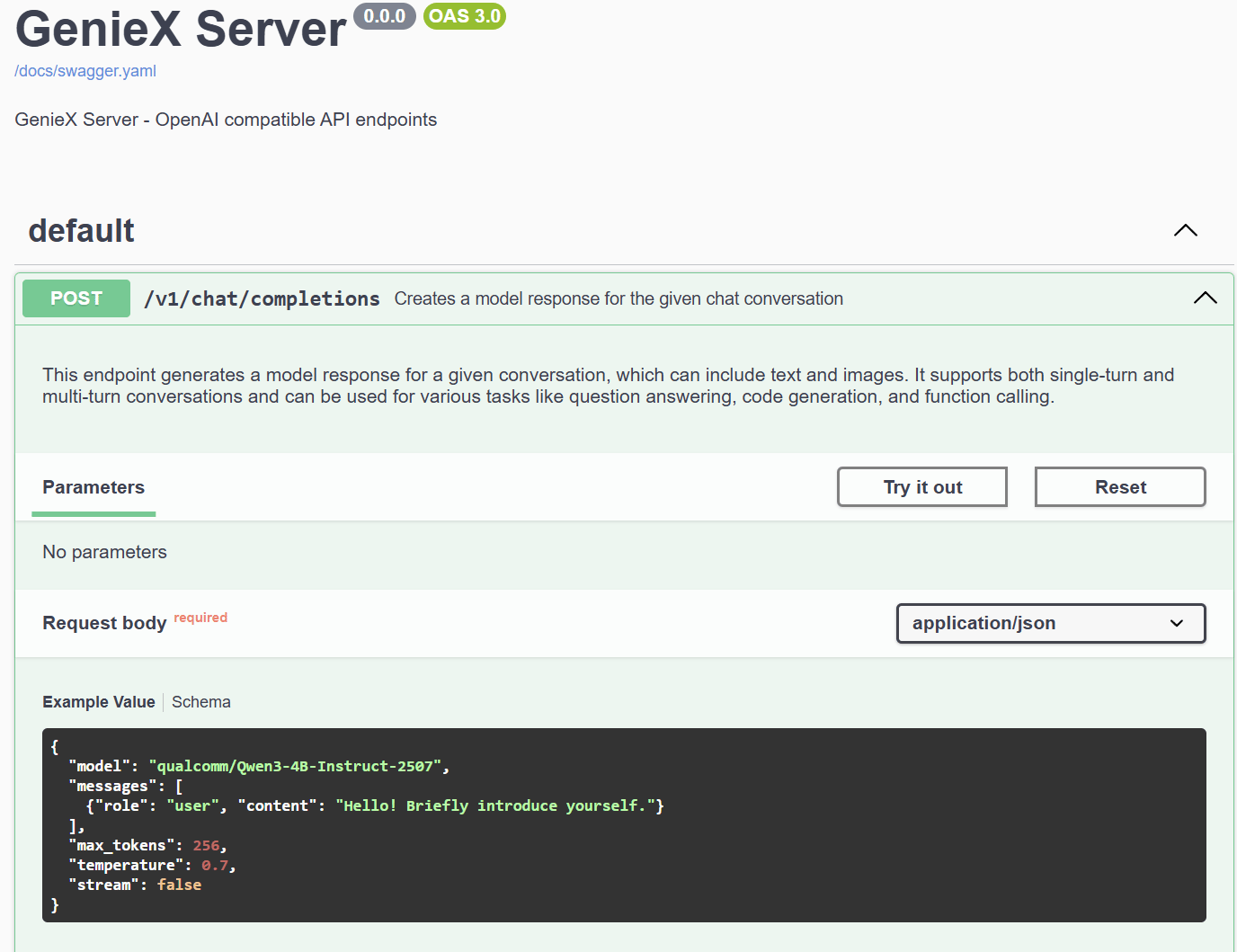
Open `http://127.0.0.1:18181` in your browser to access the built-in Swagger UI.
**Step 1.** Expand the `POST /v1/chat/completions` endpoint to view the example request body and schema.
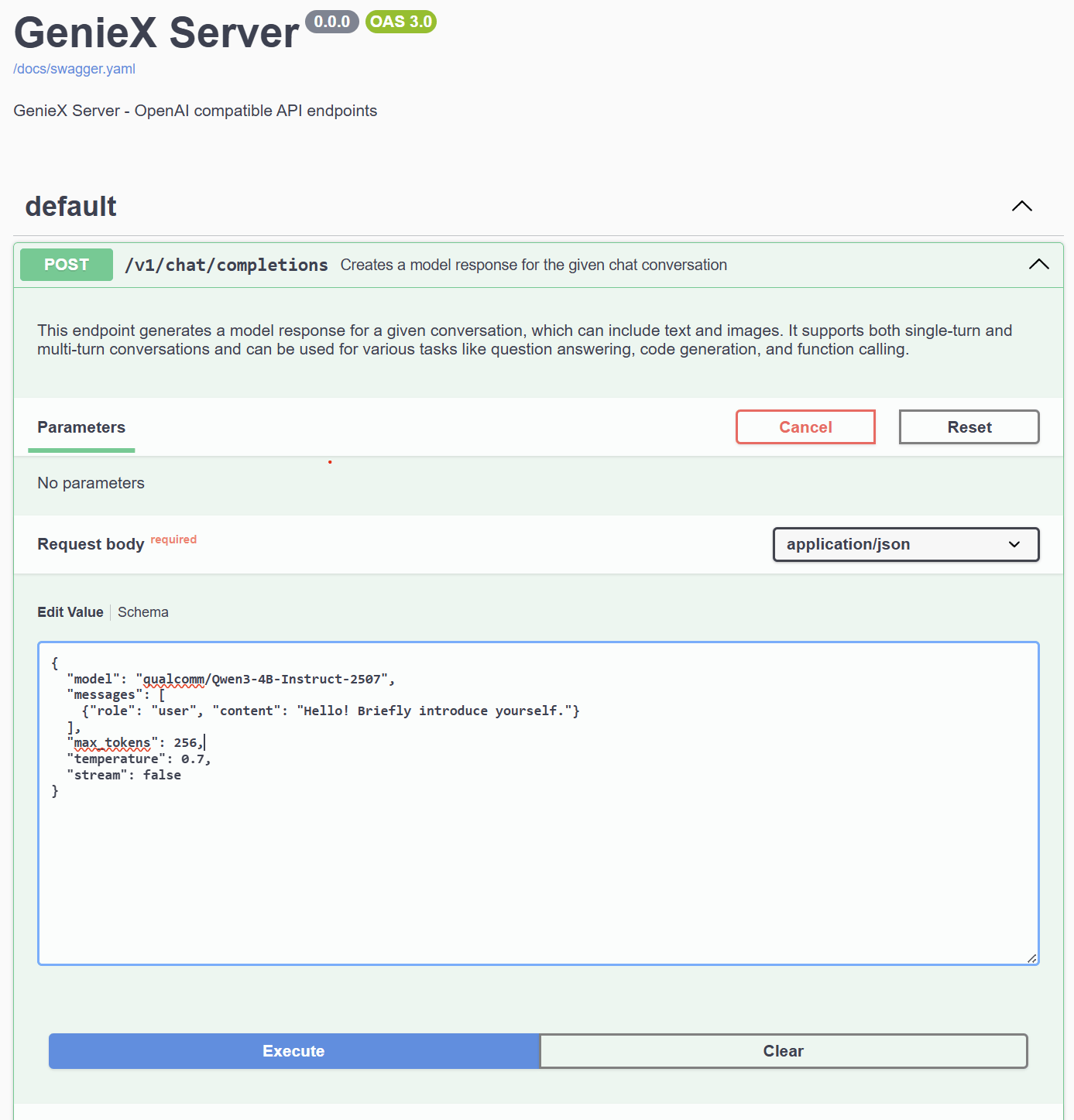
 **Step 2.** Click **Try it out**, edit the request body as needed, then click **Execute**.
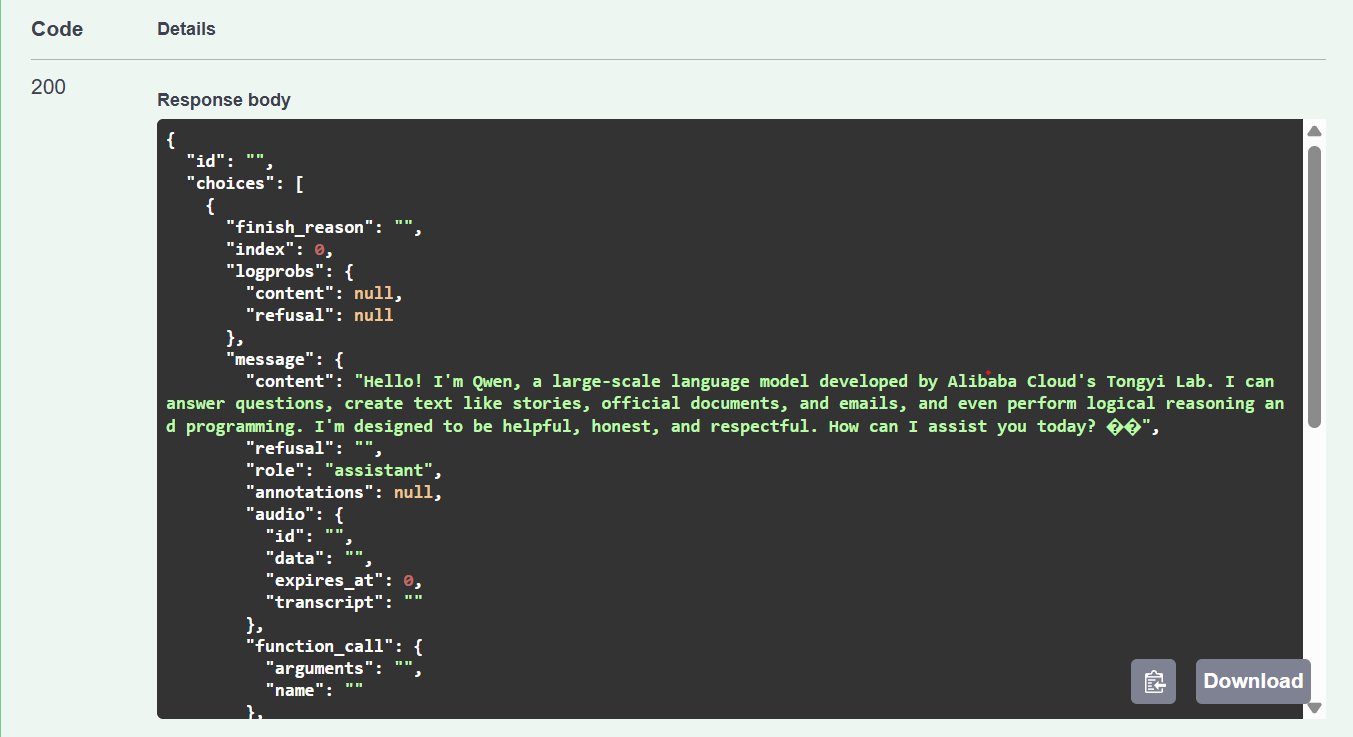
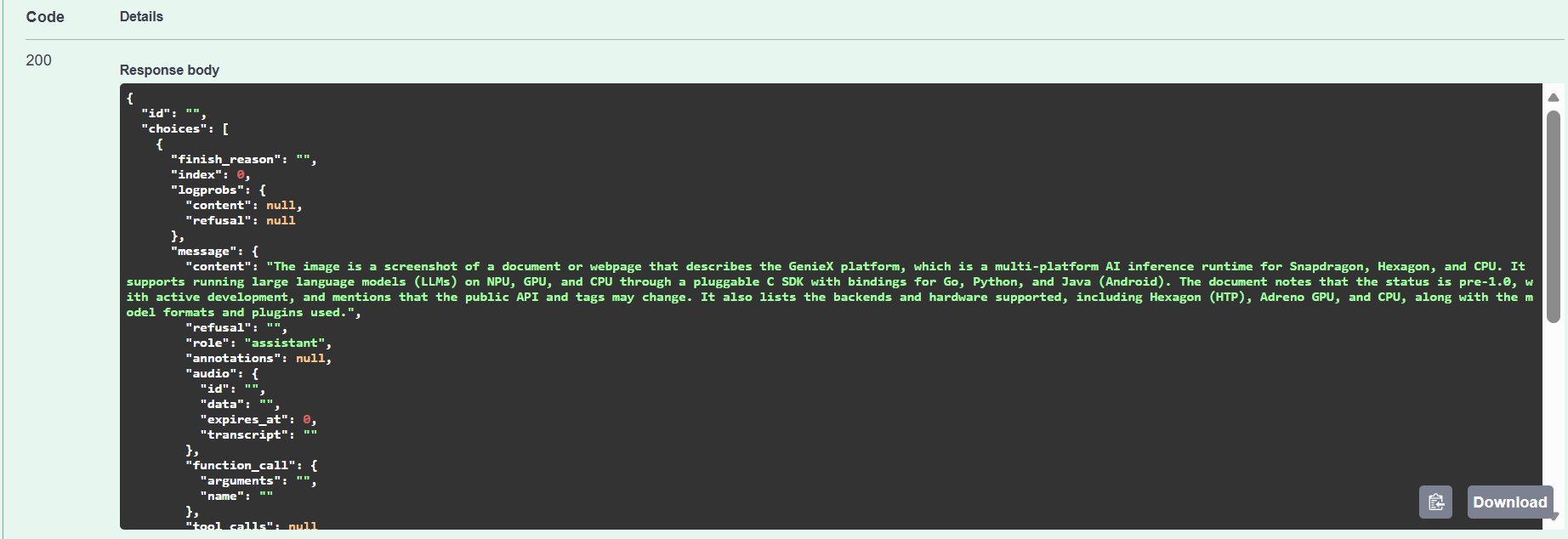
 **Step 3.** View the response — a `200` status with the model's generated reply.
 ### **VLM request**
`image_url.url` accepts three formats:
| Format | Example |
| -------------------------------------------------- | --------------------------------------------------------------- |
| Local file path (the `file://` prefix is optional) | `C:/Users/Username/Pictures/photo.jpg`, `file:///tmp/photo.jpg` |
| HTTP / HTTPS URL — fetched by the server | `https://example.com/image.jpg` |
| Base64 data URL — inline image bytes | `data:image/png;base64,iVBORw0KGgo...` |
**Running in Docker?** Local paths are resolved **inside the container**, not on your host. The install command already mounts `$PWD/data` to `/data` — drop your images there and pass `/data/cat.jpg`. Alternatively, use an HTTP URL or base64 data URL to skip the filesystem entirely.
```json Example Value theme={null}
{
"model": "ai-hub-models/Qwen2.5-VL-7B-Instruct",
"messages": [
{
"role": "user",
"content": [
{"type": "text", "text": "Describe this image succinctly."},
{"type": "image_url", "image_url": {"url": ""}}
]
}
]
}
```
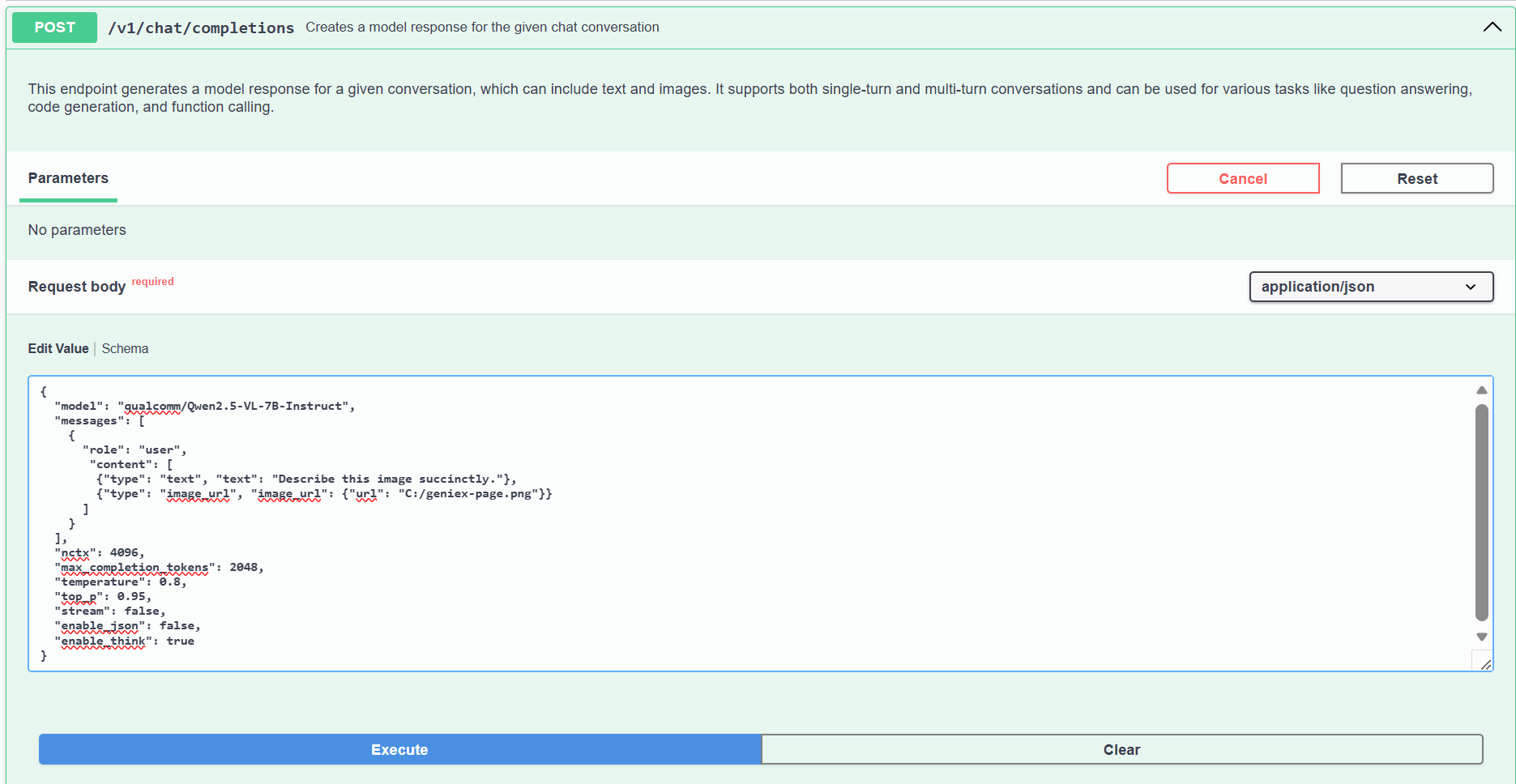
In Swagger UI, replace the request body with this VLM payload, point `image_url.url` to a local image, then click **Execute**.
### **VLM request**
`image_url.url` accepts three formats:
| Format | Example |
| -------------------------------------------------- | --------------------------------------------------------------- |
| Local file path (the `file://` prefix is optional) | `C:/Users/Username/Pictures/photo.jpg`, `file:///tmp/photo.jpg` |
| HTTP / HTTPS URL — fetched by the server | `https://example.com/image.jpg` |
| Base64 data URL — inline image bytes | `data:image/png;base64,iVBORw0KGgo...` |
**Running in Docker?** Local paths are resolved **inside the container**, not on your host. The install command already mounts `$PWD/data` to `/data` — drop your images there and pass `/data/cat.jpg`. Alternatively, use an HTTP URL or base64 data URL to skip the filesystem entirely.
```json Example Value theme={null}
{
"model": "ai-hub-models/Qwen2.5-VL-7B-Instruct",
"messages": [
{
"role": "user",
"content": [
{"type": "text", "text": "Describe this image succinctly."},
{"type": "image_url", "image_url": {"url": ""}}
]
}
]
}
```
In Swagger UI, replace the request body with this VLM payload, point `image_url.url` to a local image, then click **Execute**.
 ## **Python client (OpenAI SDK)**
Because the server speaks the OpenAI protocol, you can point the official `openai` Python client at the local endpoint and reuse any existing OpenAI code. Install with `pip install openai`, then create a client:
```python python theme={null}
from openai import OpenAI
client = OpenAI(
base_url="http://127.0.0.1:18181/v1",
api_key="geniex", # any non-empty string; the server does not check it
)
```
The examples below reuse this `client`. Replace the `model` value with a model you have already pulled. The optional `:` suffix (e.g. `Q4_0`, `Q4_K_M`, `Q8_0`) selects a quantization variant — `Q4_0` is recommended for llama.cpp on Hexagon NPU. See [Precisions (Quantizations) Supported](/en/models/supported#precisions-quantizations-supported).
### **Streaming**
Print each delta as it arrives:
```python python theme={null}
stream = client.chat.completions.create(
model="unsloth/Qwen3-4B-GGUF:Q4_0",
messages=[
{"role": "user", "content": "Hello! Briefly introduce yourself."},
],
max_tokens=256,
temperature=0.7,
stream=True,
)
for chunk in stream:
delta = chunk.choices[0].delta.content
if delta:
print(delta, end="", flush=True)
print()
```
### **Chat completion (non-streaming)**
Single request, single response, no streaming — the standard OpenAI `chat.completions.create` shape. The `enable_think=False` extra parameter turns off Qwen3's default `…` reasoning prefix so the reply content stays clean.
```python python theme={null}
resp = client.chat.completions.create(
model="unsloth/Qwen3-4B-GGUF:Q4_0",
messages=[
{"role": "user", "content": "Hello! Briefly introduce yourself."},
],
max_tokens=128,
temperature=0.7,
extra_body={"enable_think": False},
)
print(resp.choices[0].message.content)
print("finish_reason:", resp.choices[0].finish_reason)
print("usage:", resp.usage)
```
Output:
```text theme={null}
Hello! I'm Qwen, a large language model developed by Alibaba Cloud. I can help with a wide range of tasks, including answering questions, writing articles, creating stories, and more. I'm here to assist you in any way I can! How can I help you today?
finish_reason: stop
usage: CompletionUsage(completion_tokens=58, prompt_tokens=19, total_tokens=77, ...)
```
### **Separating reasoning (reasoning\_content)**
By default a thinking model leaves its chain-of-thought inline in `message.content` (`…`), mixed in with the final reply. Pass `reasoning_format="deepseek"` to make the server move the chain-of-thought into the OpenAI-standard `message.reasoning_content` field, leaving `content` clean.
`reasoning_format` is not the same as `enable_think`: `enable_think=False` makes the model **not produce** a chain-of-thought at all, while `reasoning_format="deepseek"` lets it think as usual but **moves** the thinking out of `content`. Values are `none` (default, kept inline) and `deepseek` / `deepseek-legacy` / `auto` (all separate). Tool-call requests ignore this parameter (tool parsing needs the raw tagged text).
```python python theme={null}
resp = client.chat.completions.create(
model="unsloth/Qwen3-4B-GGUF:Q4_0",
messages=[
{"role": "user", "content": "What is 2+2? Answer briefly."},
],
max_tokens=128,
extra_body={"reasoning_format": "deepseek"},
)
msg = resp.choices[0].message
print("reasoning:", msg.model_extra.get("reasoning_content"))
print("content:", msg.content)
```
Streaming works the same way — the chain-of-thought arrives as `delta.reasoning_content` deltas and the final reply as `delta.content`.
### **Tool calling**
Function/tool calling uses the standard OpenAI `tools` schema. The server extracts the tool call from the model's generated text (`…` tags or a fenced ` ```json ` block) and re-emits it as OpenAI `tool_calls`. The flow works with **VLMs too** — the model can look at an image, decide what to search for, and call a tool.
The example below walks through a two-step agentic loop with `qualcomm/Qwen3-VL-4B-Instruct`: (1) the VLM identifies a landmark from a photo and calls `web_search`, (2) you execute the search locally and feed the results back so the VLM writes a grounded reply.
Only one tool call per assistant turn is parsed — parallel tool calls in a single response are not supported.
Two Qwen3-VL specifics for reliable tool calls:
1. Prime the model with a system message that spells out the `…` shape (Qwen3-VL's chat template does not enforce it as strongly as Qwen3's text-only template).
2. On the follow-up turn, drop `tools=` and drop the image content from `messages` — this stops the VLM from re-invoking the tool and avoids re-running the vision encoder on the same image.
Install the search library used by the tool (`pip install ddgs` — DuckDuckGo, no API key required), then:
```python python theme={null}
import json
from ddgs import DDGS
tools = [
{
"type": "function",
"function": {
"name": "web_search",
"description": "Search the web for travel information about a location.",
"parameters": {
"type": "object",
"properties": {
"query": {"type": "string", "description": "Search query, e.g. 'things to do in Kyoto'"},
},
"required": ["query"],
},
},
}
]
def web_search(query: str) -> list[dict]:
return [
{"title": r["title"], "snippet": r["body"], "url": r["href"]}
for r in DDGS().text(query, max_results=3)
]
IMAGE_URL = "https://images.pexels.com/photos/402028/pexels-photo-402028.jpeg?w=1024"
system_prompt = (
"You are a travel assistant. Call the web_search tool to look up any location "
"the user asks about before answering. Once you receive the tool results, do not "
"call the tool again - use them to write a short, friendly reply for the user. "
"Emit tool calls in the exact format: "
'{"name": "web_search", "arguments": {"query": ""}}'
)
messages = [
{"role": "system", "content": system_prompt},
{
"role": "user",
"content": [
{"type": "image_url", "image_url": {"url": IMAGE_URL}},
{"type": "text", "text": "Identify the landmark, then call web_search for travel tips about it."},
],
},
]
# Step 1 - VLM identifies the landmark and requests a web_search call.
first = client.chat.completions.create(
model="qualcomm/Qwen3-VL-4B-Instruct",
messages=messages,
tools=tools,
tool_choice="auto",
max_tokens=512,
extra_body={"enable_think": False},
)
call = first.choices[0].message.tool_calls[0]
print("finish_reason:", first.choices[0].finish_reason) # -> "tool_calls"
print("call:", call.function.name, call.function.arguments)
# Step 2 - run the tool, feed the result back as a fresh text-only conversation.
result = web_search(**json.loads(call.function.arguments))
followup = [
{"role": "system", "content": system_prompt},
{"role": "user", "content": "Summarize travel tips using the search results below."},
first.choices[0].message,
{"role": "tool", "tool_call_id": call.id, "content": json.dumps(result)},
]
final = client.chat.completions.create(
model="qualcomm/Qwen3-VL-4B-Instruct",
messages=followup,
max_tokens=256,
extra_body={"enable_think": False},
)
print(final.choices[0].message.content)
```
Output (grounded on the live DuckDuckGo results — the exact prose varies with what the web returns that day):
```text theme={null}
finish_reason: tool_calls
call: web_search {"query": "Kiyomizu-dera travel tips"}
Here's a quick summary of travel tips for Kiyomizu-dera in Kyoto:
**1. Best Times to Visit:**
Early morning (around 7-8 AM) or late afternoon (4-6 PM) are ideal to avoid the crowds.
Peak hours (11 AM–2 PM) can be very busy, so plan accordingly.
**2. How to Get There:**
Take the Kiyomizu-dera train or bus from Kyoto Station to the temple.
The temple is located on a hill with a wooden stage built without nails, and the walkways are accessible, though narrow.
**3. What to See:**
- The great wooden stage (without nails)
- Otawa waterfall and its three streams
- Jishu love shrine
- The Sannenzaka and Ninenzaka approach streets
- Night illuminations (best experienced at night)
...
```
## **Other endpoints**
* `GET /v1/models` — list available models.
* `GET /v1/models/{model}` — get info about a specific model.
## **Python client (OpenAI SDK)**
Because the server speaks the OpenAI protocol, you can point the official `openai` Python client at the local endpoint and reuse any existing OpenAI code. Install with `pip install openai`, then create a client:
```python python theme={null}
from openai import OpenAI
client = OpenAI(
base_url="http://127.0.0.1:18181/v1",
api_key="geniex", # any non-empty string; the server does not check it
)
```
The examples below reuse this `client`. Replace the `model` value with a model you have already pulled. The optional `:` suffix (e.g. `Q4_0`, `Q4_K_M`, `Q8_0`) selects a quantization variant — `Q4_0` is recommended for llama.cpp on Hexagon NPU. See [Precisions (Quantizations) Supported](/en/models/supported#precisions-quantizations-supported).
### **Streaming**
Print each delta as it arrives:
```python python theme={null}
stream = client.chat.completions.create(
model="unsloth/Qwen3-4B-GGUF:Q4_0",
messages=[
{"role": "user", "content": "Hello! Briefly introduce yourself."},
],
max_tokens=256,
temperature=0.7,
stream=True,
)
for chunk in stream:
delta = chunk.choices[0].delta.content
if delta:
print(delta, end="", flush=True)
print()
```
### **Chat completion (non-streaming)**
Single request, single response, no streaming — the standard OpenAI `chat.completions.create` shape. The `enable_think=False` extra parameter turns off Qwen3's default `…` reasoning prefix so the reply content stays clean.
```python python theme={null}
resp = client.chat.completions.create(
model="unsloth/Qwen3-4B-GGUF:Q4_0",
messages=[
{"role": "user", "content": "Hello! Briefly introduce yourself."},
],
max_tokens=128,
temperature=0.7,
extra_body={"enable_think": False},
)
print(resp.choices[0].message.content)
print("finish_reason:", resp.choices[0].finish_reason)
print("usage:", resp.usage)
```
Output:
```text theme={null}
Hello! I'm Qwen, a large language model developed by Alibaba Cloud. I can help with a wide range of tasks, including answering questions, writing articles, creating stories, and more. I'm here to assist you in any way I can! How can I help you today?
finish_reason: stop
usage: CompletionUsage(completion_tokens=58, prompt_tokens=19, total_tokens=77, ...)
```
### **Separating reasoning (reasoning\_content)**
By default a thinking model leaves its chain-of-thought inline in `message.content` (`…`), mixed in with the final reply. Pass `reasoning_format="deepseek"` to make the server move the chain-of-thought into the OpenAI-standard `message.reasoning_content` field, leaving `content` clean.
`reasoning_format` is not the same as `enable_think`: `enable_think=False` makes the model **not produce** a chain-of-thought at all, while `reasoning_format="deepseek"` lets it think as usual but **moves** the thinking out of `content`. Values are `none` (default, kept inline) and `deepseek` / `deepseek-legacy` / `auto` (all separate). Tool-call requests ignore this parameter (tool parsing needs the raw tagged text).
```python python theme={null}
resp = client.chat.completions.create(
model="unsloth/Qwen3-4B-GGUF:Q4_0",
messages=[
{"role": "user", "content": "What is 2+2? Answer briefly."},
],
max_tokens=128,
extra_body={"reasoning_format": "deepseek"},
)
msg = resp.choices[0].message
print("reasoning:", msg.model_extra.get("reasoning_content"))
print("content:", msg.content)
```
Streaming works the same way — the chain-of-thought arrives as `delta.reasoning_content` deltas and the final reply as `delta.content`.
### **Tool calling**
Function/tool calling uses the standard OpenAI `tools` schema. The server extracts the tool call from the model's generated text (`…` tags or a fenced ` ```json ` block) and re-emits it as OpenAI `tool_calls`. The flow works with **VLMs too** — the model can look at an image, decide what to search for, and call a tool.
The example below walks through a two-step agentic loop with `qualcomm/Qwen3-VL-4B-Instruct`: (1) the VLM identifies a landmark from a photo and calls `web_search`, (2) you execute the search locally and feed the results back so the VLM writes a grounded reply.
Only one tool call per assistant turn is parsed — parallel tool calls in a single response are not supported.
Two Qwen3-VL specifics for reliable tool calls:
1. Prime the model with a system message that spells out the `…` shape (Qwen3-VL's chat template does not enforce it as strongly as Qwen3's text-only template).
2. On the follow-up turn, drop `tools=` and drop the image content from `messages` — this stops the VLM from re-invoking the tool and avoids re-running the vision encoder on the same image.
Install the search library used by the tool (`pip install ddgs` — DuckDuckGo, no API key required), then:
```python python theme={null}
import json
from ddgs import DDGS
tools = [
{
"type": "function",
"function": {
"name": "web_search",
"description": "Search the web for travel information about a location.",
"parameters": {
"type": "object",
"properties": {
"query": {"type": "string", "description": "Search query, e.g. 'things to do in Kyoto'"},
},
"required": ["query"],
},
},
}
]
def web_search(query: str) -> list[dict]:
return [
{"title": r["title"], "snippet": r["body"], "url": r["href"]}
for r in DDGS().text(query, max_results=3)
]
IMAGE_URL = "https://images.pexels.com/photos/402028/pexels-photo-402028.jpeg?w=1024"
system_prompt = (
"You are a travel assistant. Call the web_search tool to look up any location "
"the user asks about before answering. Once you receive the tool results, do not "
"call the tool again - use them to write a short, friendly reply for the user. "
"Emit tool calls in the exact format: "
'{"name": "web_search", "arguments": {"query": ""}}'
)
messages = [
{"role": "system", "content": system_prompt},
{
"role": "user",
"content": [
{"type": "image_url", "image_url": {"url": IMAGE_URL}},
{"type": "text", "text": "Identify the landmark, then call web_search for travel tips about it."},
],
},
]
# Step 1 - VLM identifies the landmark and requests a web_search call.
first = client.chat.completions.create(
model="qualcomm/Qwen3-VL-4B-Instruct",
messages=messages,
tools=tools,
tool_choice="auto",
max_tokens=512,
extra_body={"enable_think": False},
)
call = first.choices[0].message.tool_calls[0]
print("finish_reason:", first.choices[0].finish_reason) # -> "tool_calls"
print("call:", call.function.name, call.function.arguments)
# Step 2 - run the tool, feed the result back as a fresh text-only conversation.
result = web_search(**json.loads(call.function.arguments))
followup = [
{"role": "system", "content": system_prompt},
{"role": "user", "content": "Summarize travel tips using the search results below."},
first.choices[0].message,
{"role": "tool", "tool_call_id": call.id, "content": json.dumps(result)},
]
final = client.chat.completions.create(
model="qualcomm/Qwen3-VL-4B-Instruct",
messages=followup,
max_tokens=256,
extra_body={"enable_think": False},
)
print(final.choices[0].message.content)
```
Output (grounded on the live DuckDuckGo results — the exact prose varies with what the web returns that day):
```text theme={null}
finish_reason: tool_calls
call: web_search {"query": "Kiyomizu-dera travel tips"}
Here's a quick summary of travel tips for Kiyomizu-dera in Kyoto:
**1. Best Times to Visit:**
Early morning (around 7-8 AM) or late afternoon (4-6 PM) are ideal to avoid the crowds.
Peak hours (11 AM–2 PM) can be very busy, so plan accordingly.
**2. How to Get There:**
Take the Kiyomizu-dera train or bus from Kyoto Station to the temple.
The temple is located on a hill with a wooden stage built without nails, and the walkways are accessible, though narrow.
**3. What to See:**
- The great wooden stage (without nails)
- Otawa waterfall and its three streams
- Jishu love shrine
- The Sannenzaka and Ninenzaka approach streets
- Night illuminations (best experienced at night)
...
```
## **Other endpoints**
* `GET /v1/models` — list available models.
* `GET /v1/models/{model}` — get info about a specific model.